Browse the PostGrad marketplace, preview a feed, and complete Stripe Checkout to add it to your account.
Your subscriber plan covers the platform and a query budget. Feeds are separate — licensors publish curated knowledge (trending content, AI news, analytics, vertical-specific datasets) and charge a monthly fee on top. This walkthrough covers the end-to-end flow from browsing the marketplace to watching a feed show up in your API results.
Before you start: you need an active subscriber plan (Sign up + pick your plan) and a payment method. Feed subscriptions bill through Stripe — same card system as your plan.
1Open the Marketplace from your dashboard
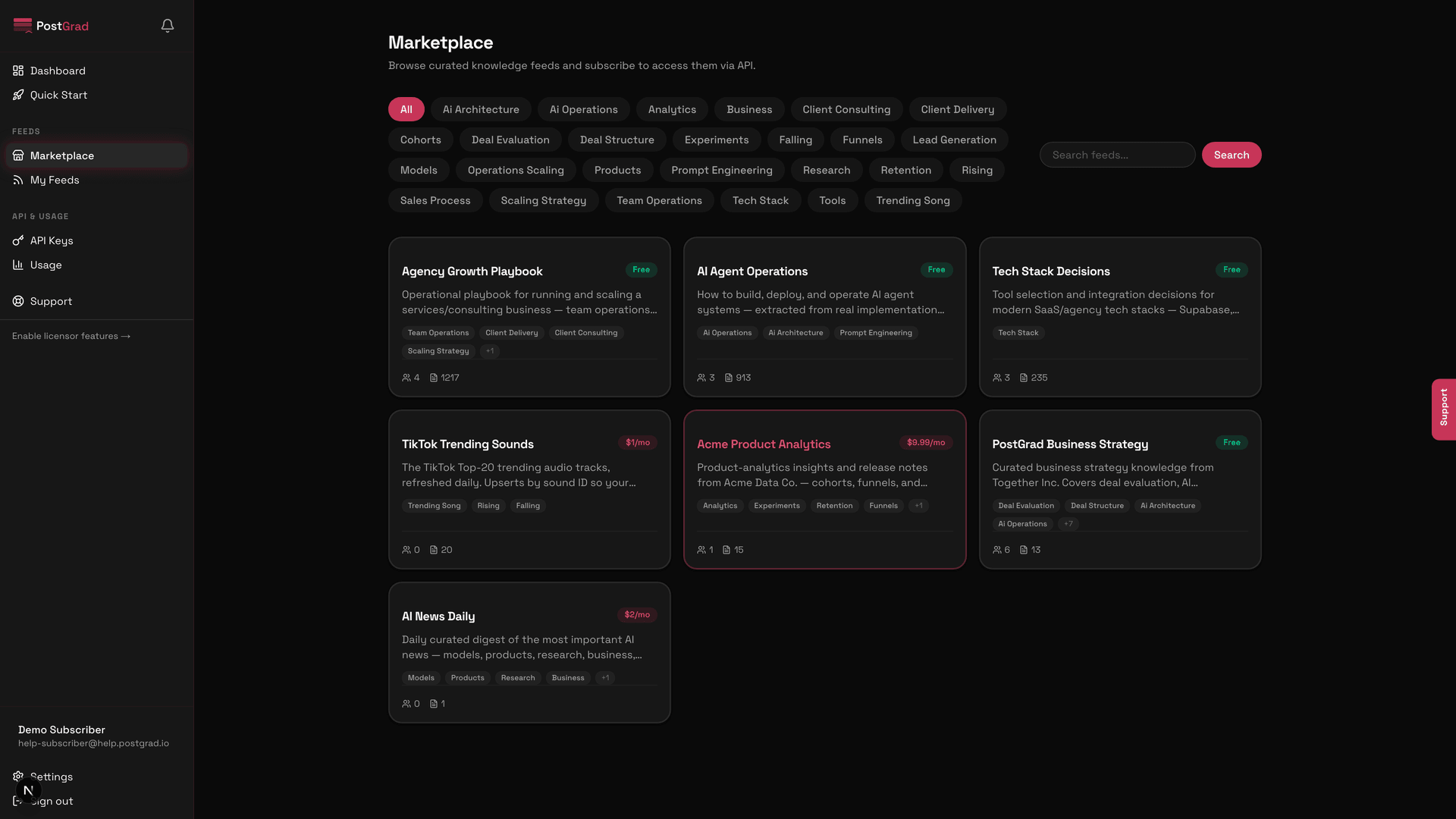
The PostGrad dashboard Marketplace page, showing the feed grid, category filters, and search bar at the top.
Free platform feeds appear alongside paid ones — they're labeled "Free" on the card. You don't need to subscribe to those; they're included in every plan.
2Pick a feed and open its detail page
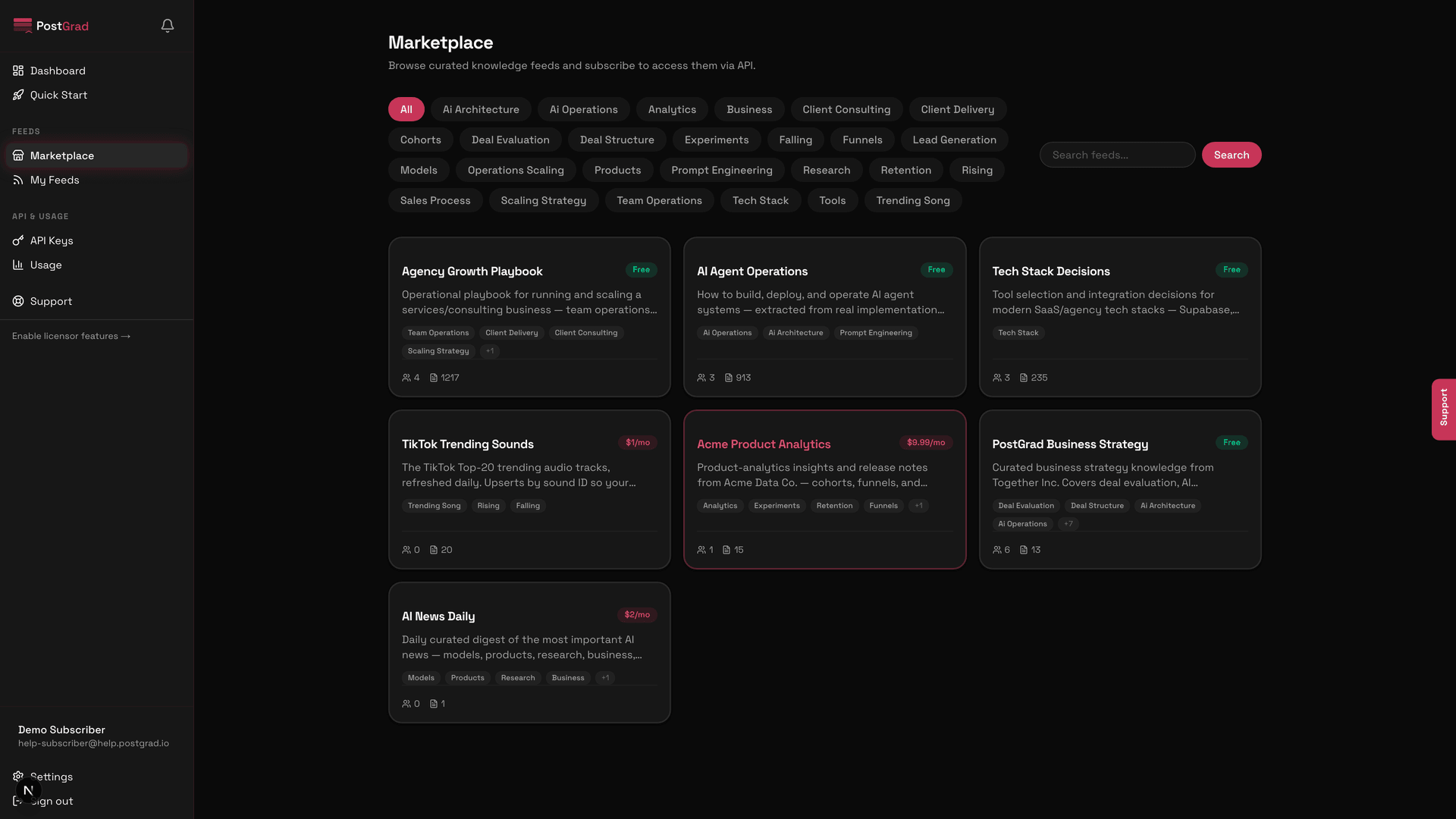
A feed card in the marketplace showing the feed name, licensor, monthly price, and a preview of what the feed contains.
3Read the feed's description and sample entries
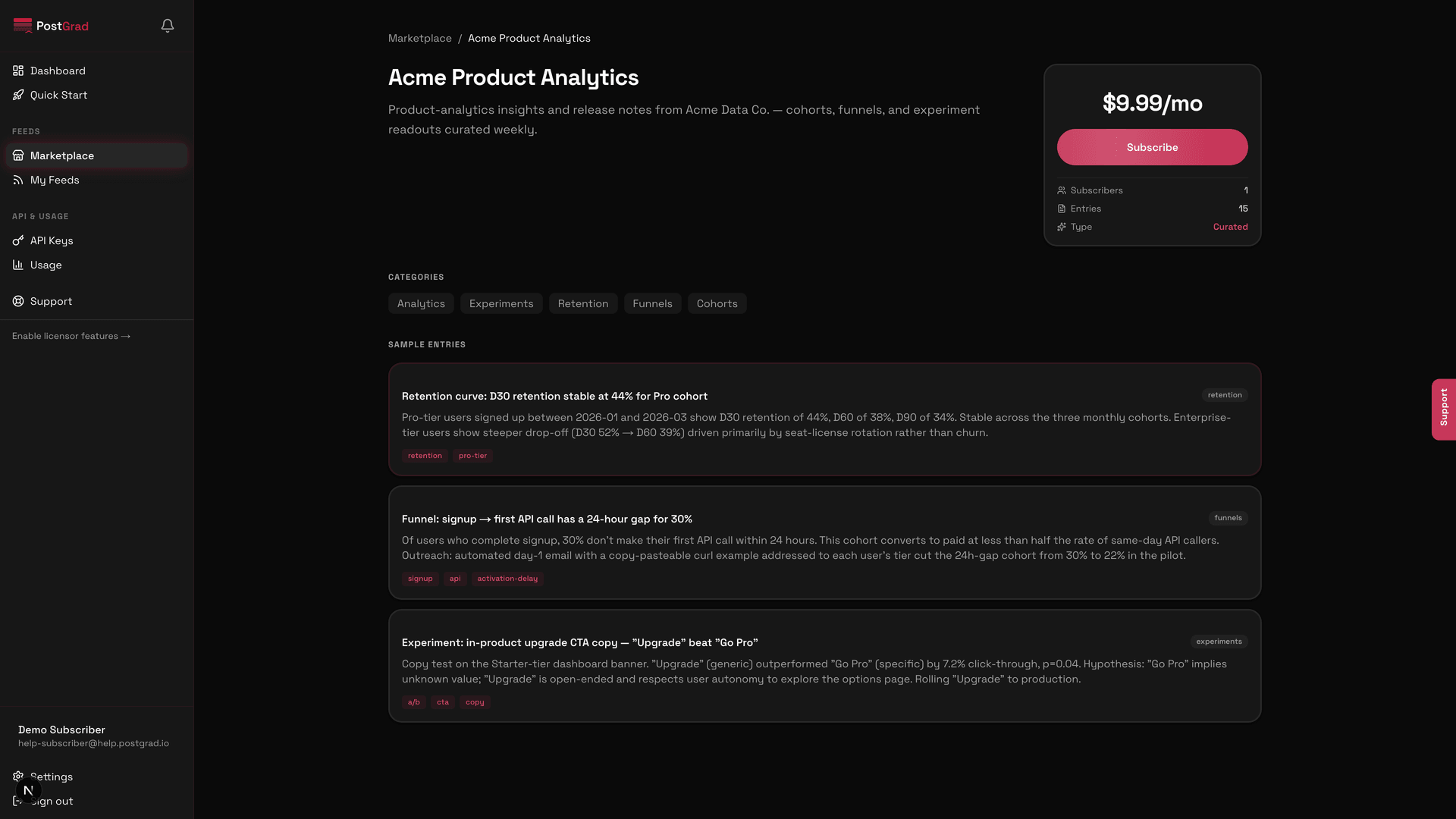
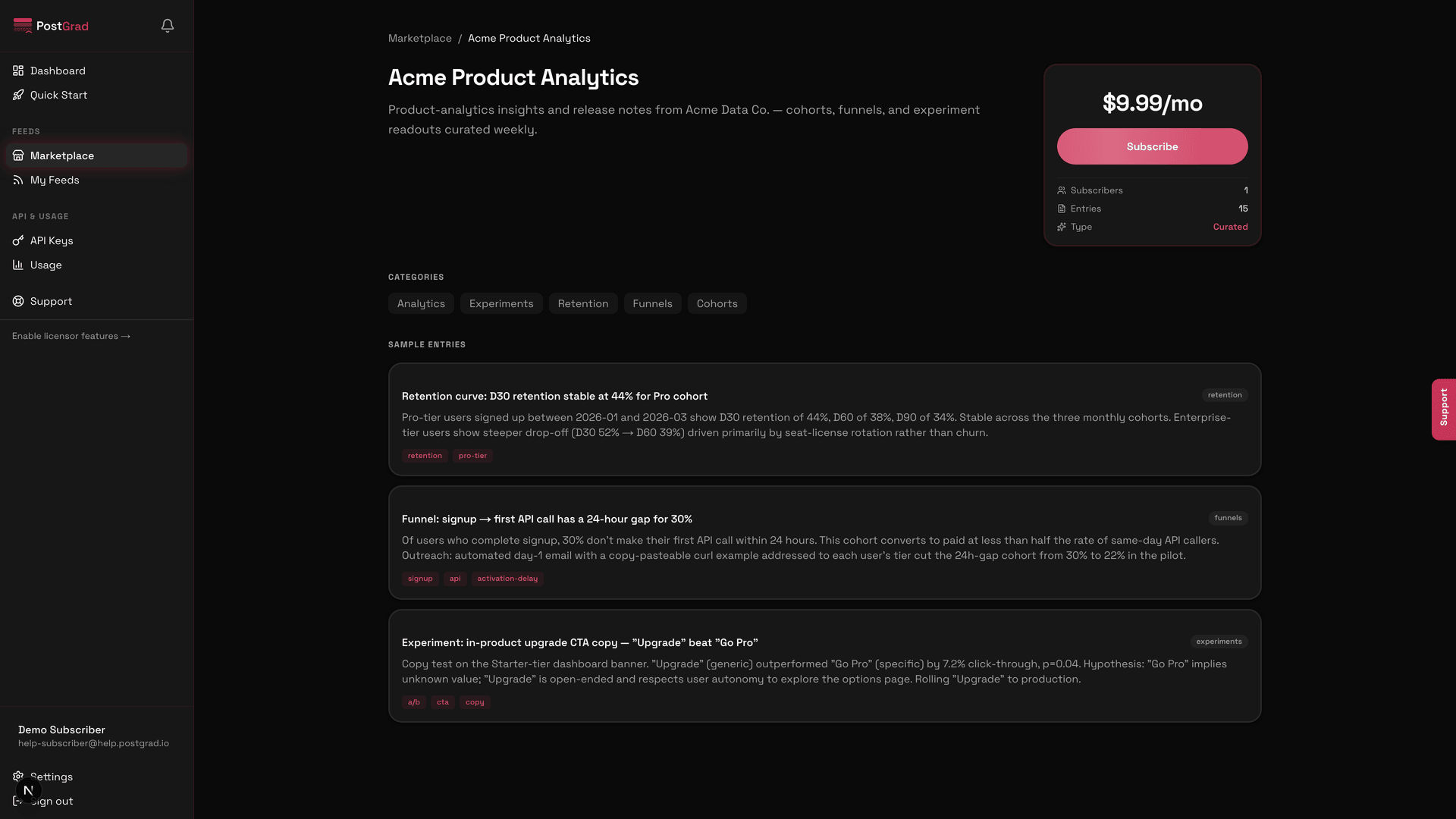
The feed detail page showing a full description, category tags, licensor profile, and a preview of the first several knowledge entries.
Sample entries are real — this is the same shape your API will return once you subscribe. The only thing changing after subscription is that you get the full dataset instead of the preview.
4Click "Subscribe" and review the price
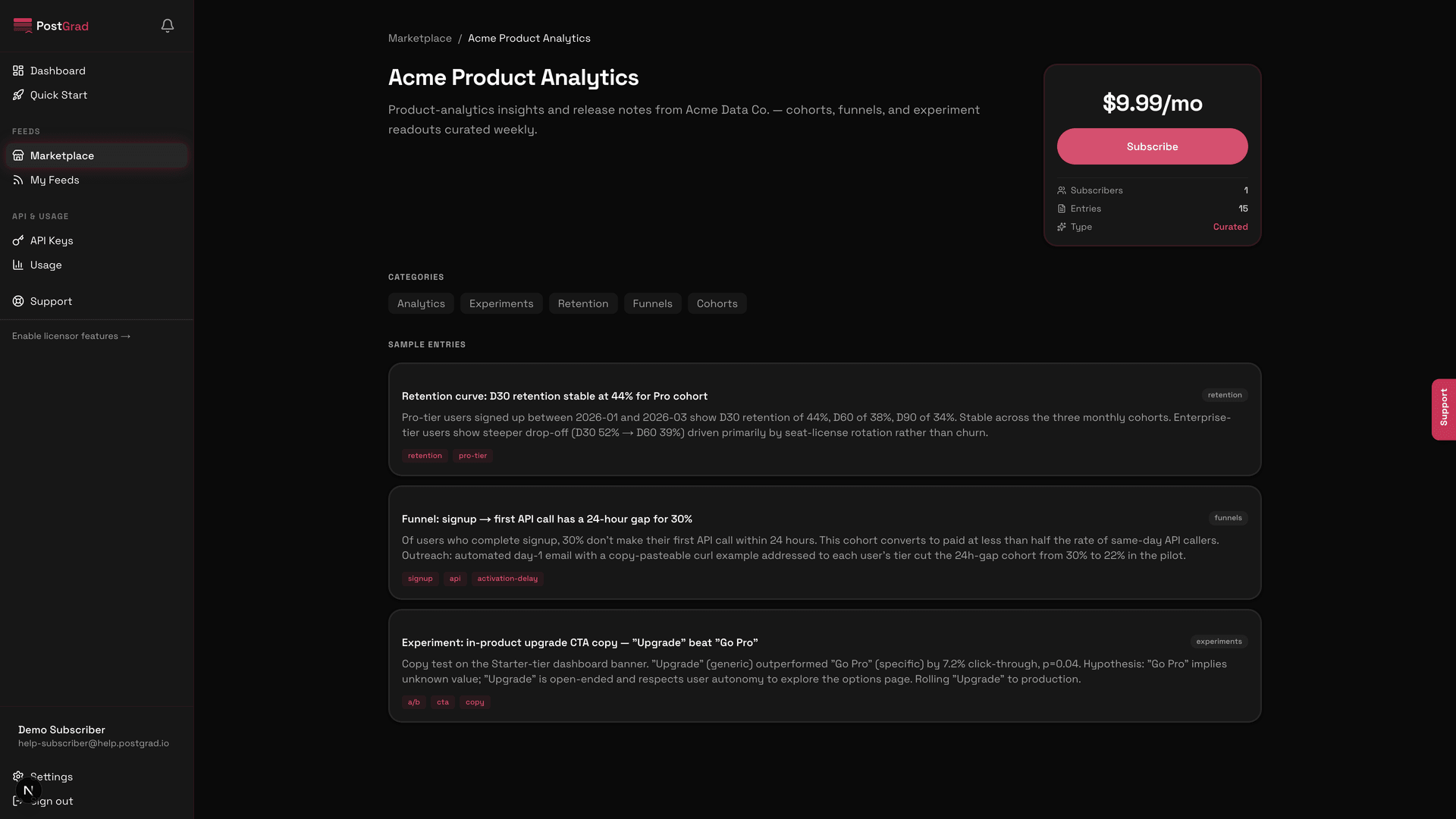
The feed detail page with the Subscribe button and the monthly price clearly shown.
5Complete Stripe Checkout
The feed detail page during the subscribe flow, with a loading state indicating redirection to Stripe Checkout.
If checkout fails — declined card, auth required — Stripe surfaces the error and PostGrad keeps you on the marketplace page. The subscription only activates when payment succeeds.
6See the feed in My Feeds
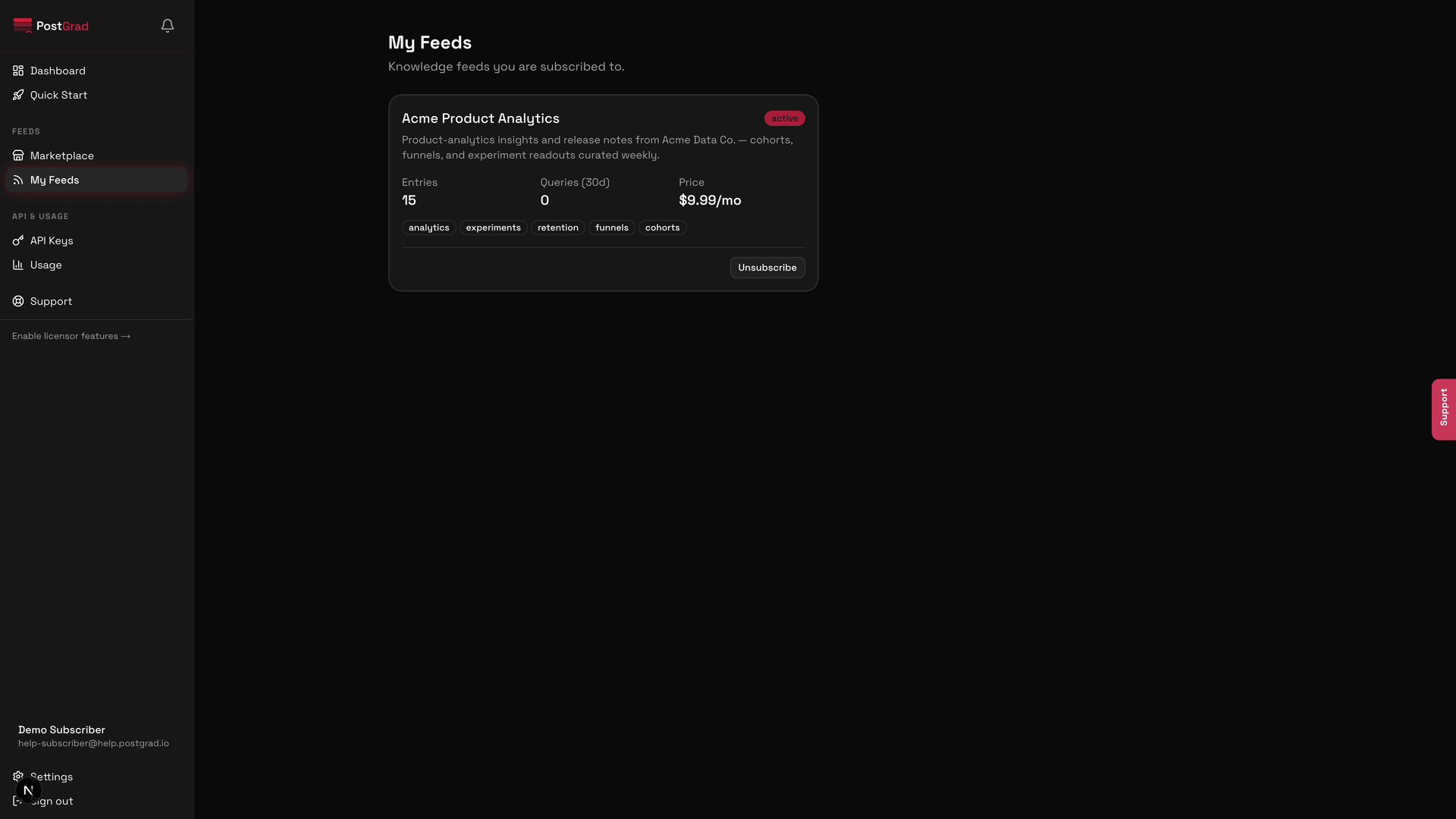
The My Feeds page showing the newly subscribed feed in the active list with its status, price, and next-billing date.
7Query the feed from the API
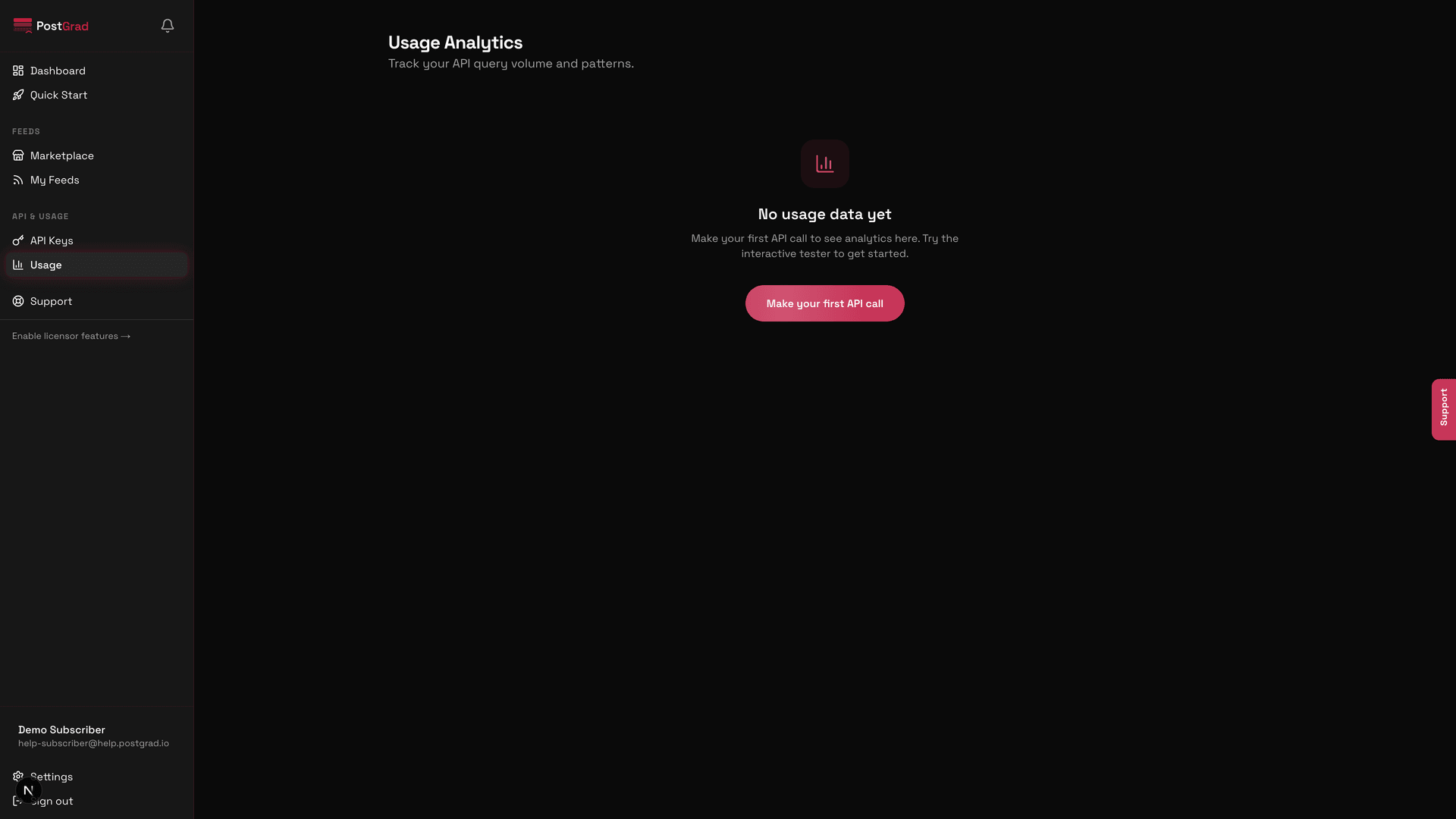
The Usage page showing recent API calls, including calls against the newly subscribed feed.
Each feed has a unique slug you pass in as the feed parameter. You'll find it on the feed detail page under "API details" or by listing your active feeds with GET /v1/feeds.