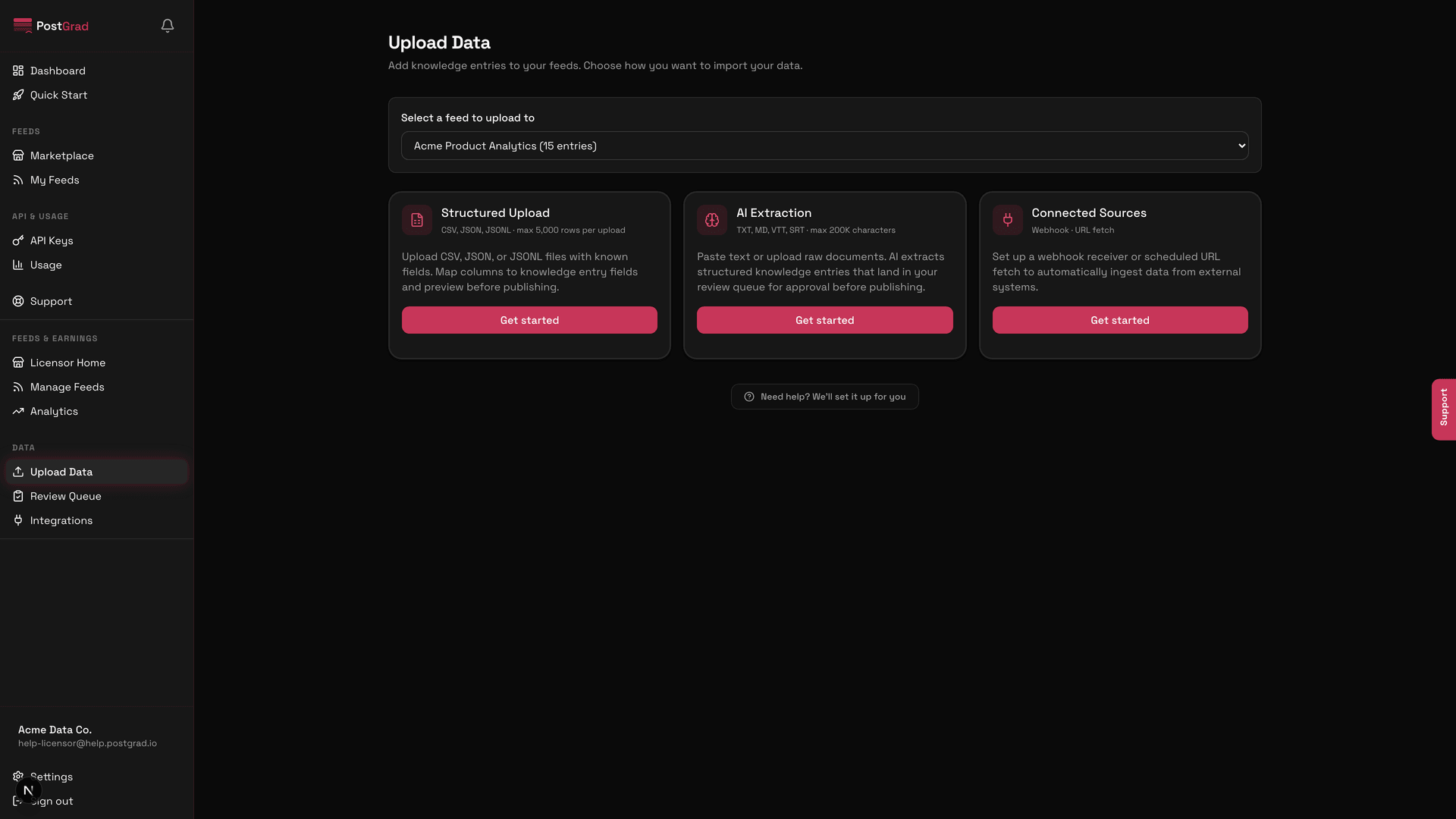
Upload knowledge to your feed Add entries to a feed via paste, structured CSV upload, or a connected source that syncs automatically.
Three paths get knowledge into a feed: paste raw text, upload a structured CSV, or connect a source that syncs continuously. Each path ends at the same place — reviewed, extracted, published entries — but has a different tradeoff between speed and automation.
Before you start: you've created a feed (Create your first feed ).
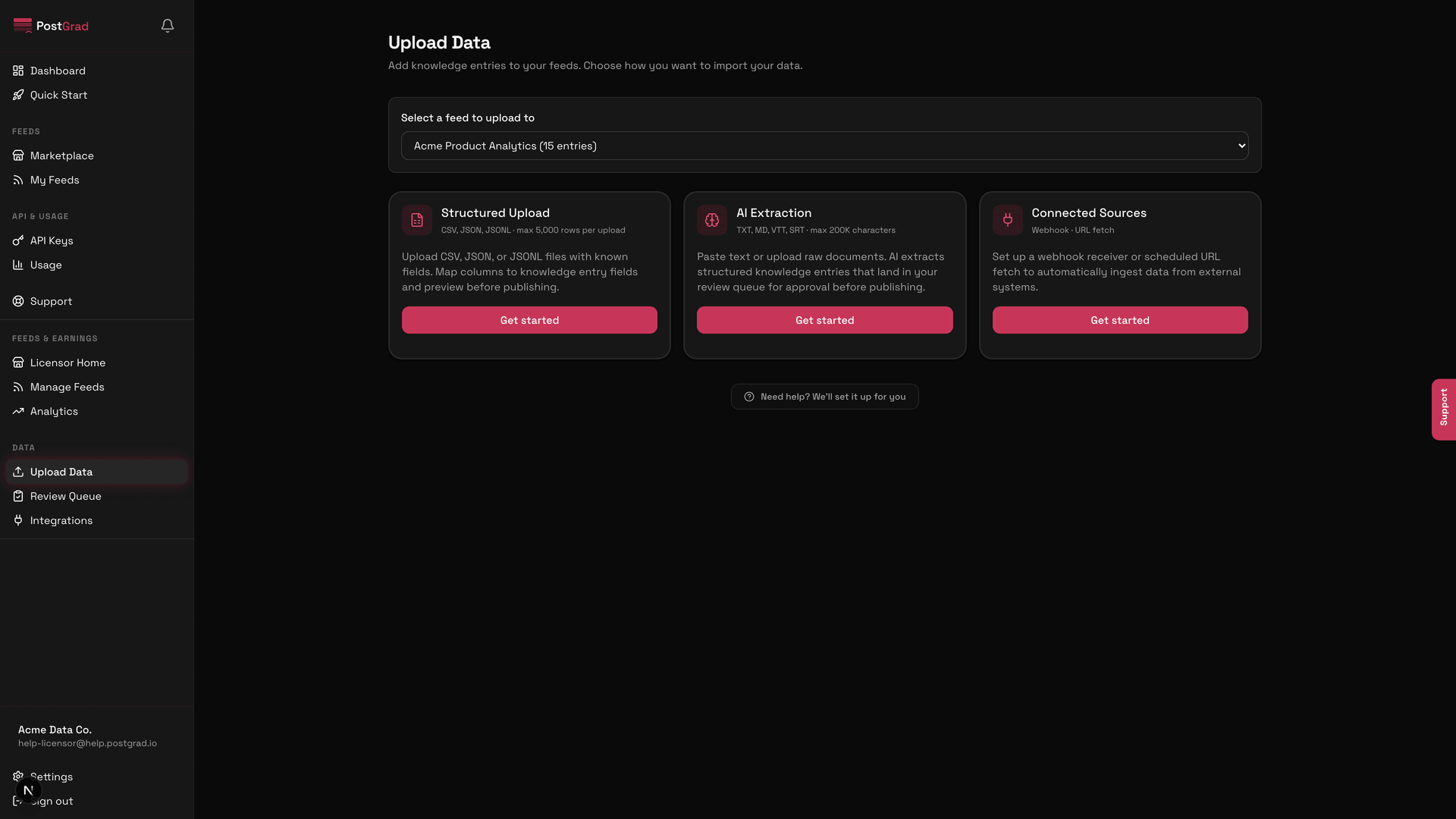
1 Open Upload from the licensor sidebar The Upload landing page showing three cards: paste raw text, upload structured CSV, and connect a source. From the licensor sidebar, click Upload. The landing page shows three cards — one for each upload path. Pick the one that matches the shape of your source material.
2 Path A: paste raw text for extraction The paste upload screen showing a large textarea with sample text and an Extract button. The paste path is right for ad-hoc content — meeting transcripts, blog drafts, email digests. Paste the text, pick the feed it belongs to, and click Extract. PostGrad's extraction engine parses it into structured entries and drops them into the review queue.
This path is the fastest to try but the slowest to scale. Use it to see what extraction does; switch to CSV or Connect for ongoing volume.
3 Path B: upload a structured CSV The CSV upload screen showing a drag-drop zone, a file-format spec, and a sample CSV row. If you already have structured data — a spreadsheet of articles, a database export, a product catalog — use the CSV path. Download the template, map your columns to PostGrad's fields (title, content, category, tags, source_url), and drop the file in. Every row becomes a candidate entry.
4 Map your CSV columns The column-mapping UI showing CSV column names on the left matched to PostGrad feed fields on the right. PostGrad auto-detects common column names but lets you map explicitly when it's not obvious. Bad mappings surface at preview — you see the first ten rows rendered as feed entries before you commit to the import.
5 Path C: connect a live source The Connect screen showing supported source types: RSS, webhook, n8n workflow, Zapier. Connected sources sync automatically on a schedule. RSS for blogs and news feeds. Webhook for any source you can push from. n8n for visual workflows. Zapier for everything else. The connection is one-time setup; new entries flow in continuously.
6 Confirm entries land in the review queue The review queue showing newly uploaded entries with their extracted fields, confidence scores, and action buttons. Every upload path lands entries in the review queue. From here you can approve, edit, or reject them before they go live. The confidence score tells you how sure the extraction engine was; entries below your feed's confidence floor are auto-flagged for review.