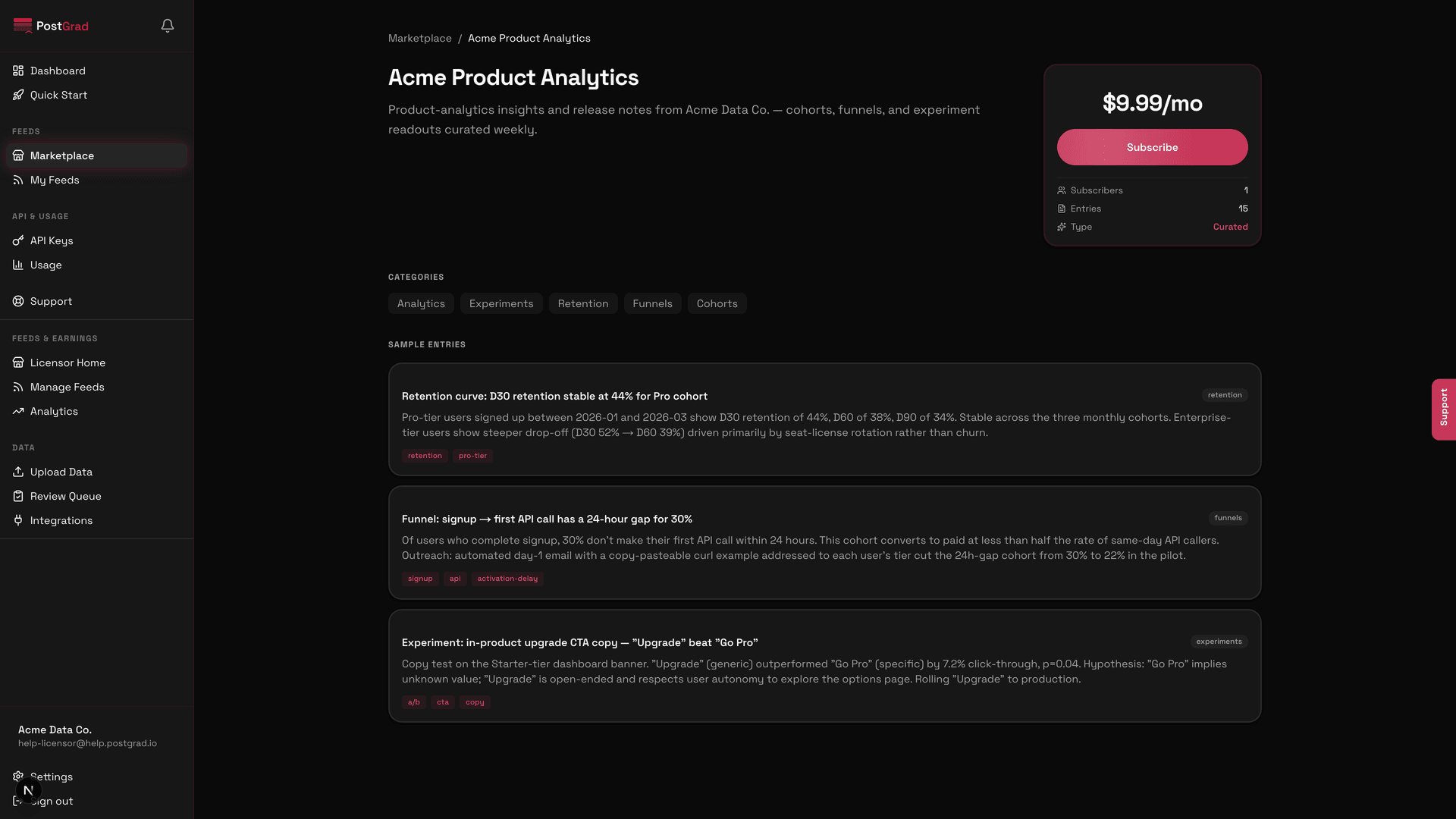
Name a feed, set its price and categories, and publish it to the PostGrad marketplace where subscribers can buy access.
A feed is the unit of commerce on PostGrad. Subscribers pay you per month for access to one feed; each feed has its own price, categories, and a curated set of knowledge entries. This walkthrough takes about three minutes to get a feed live.
Before you start: you're a licensor with Stripe Connect onboarded (KYC and payouts).
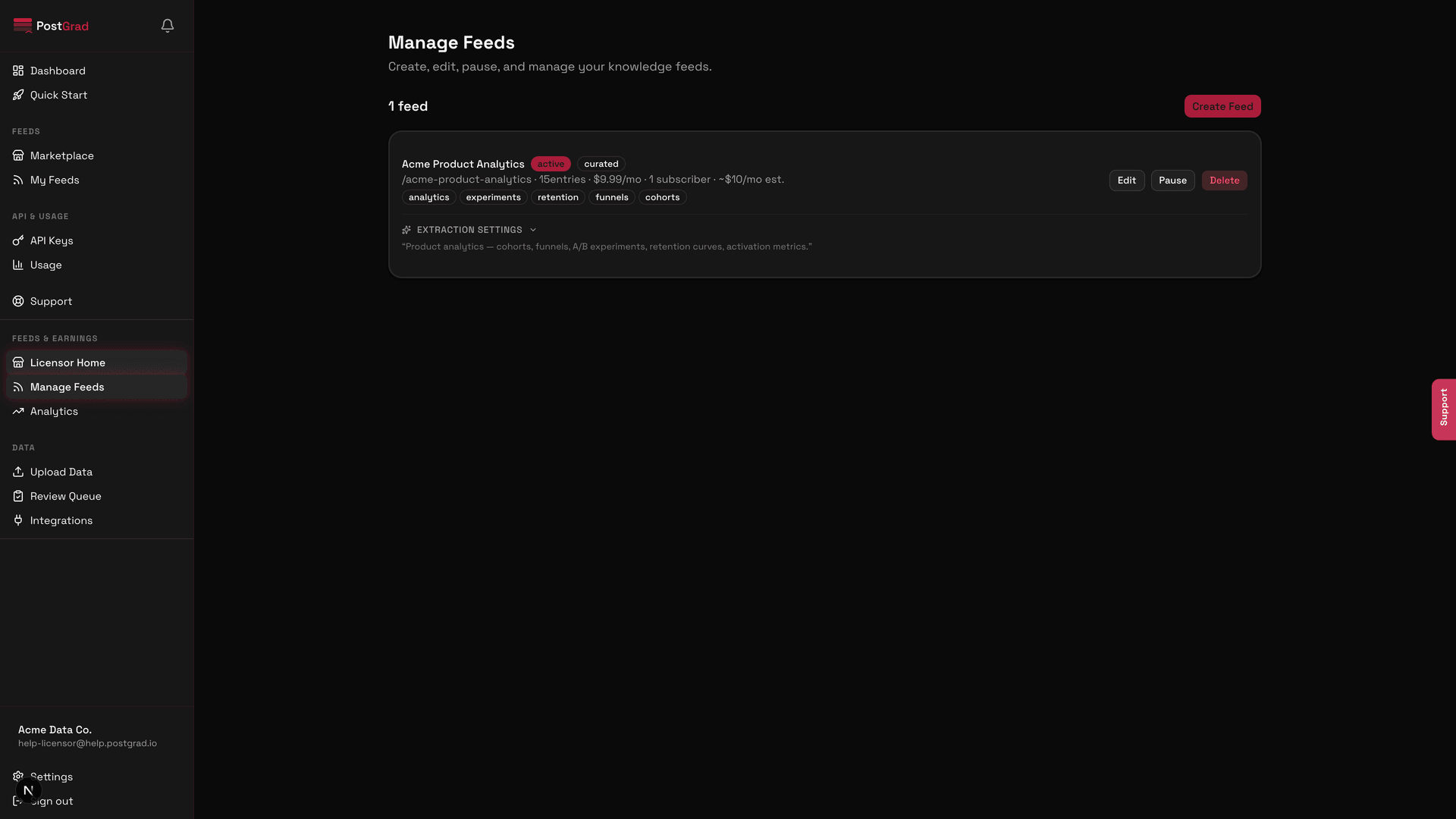
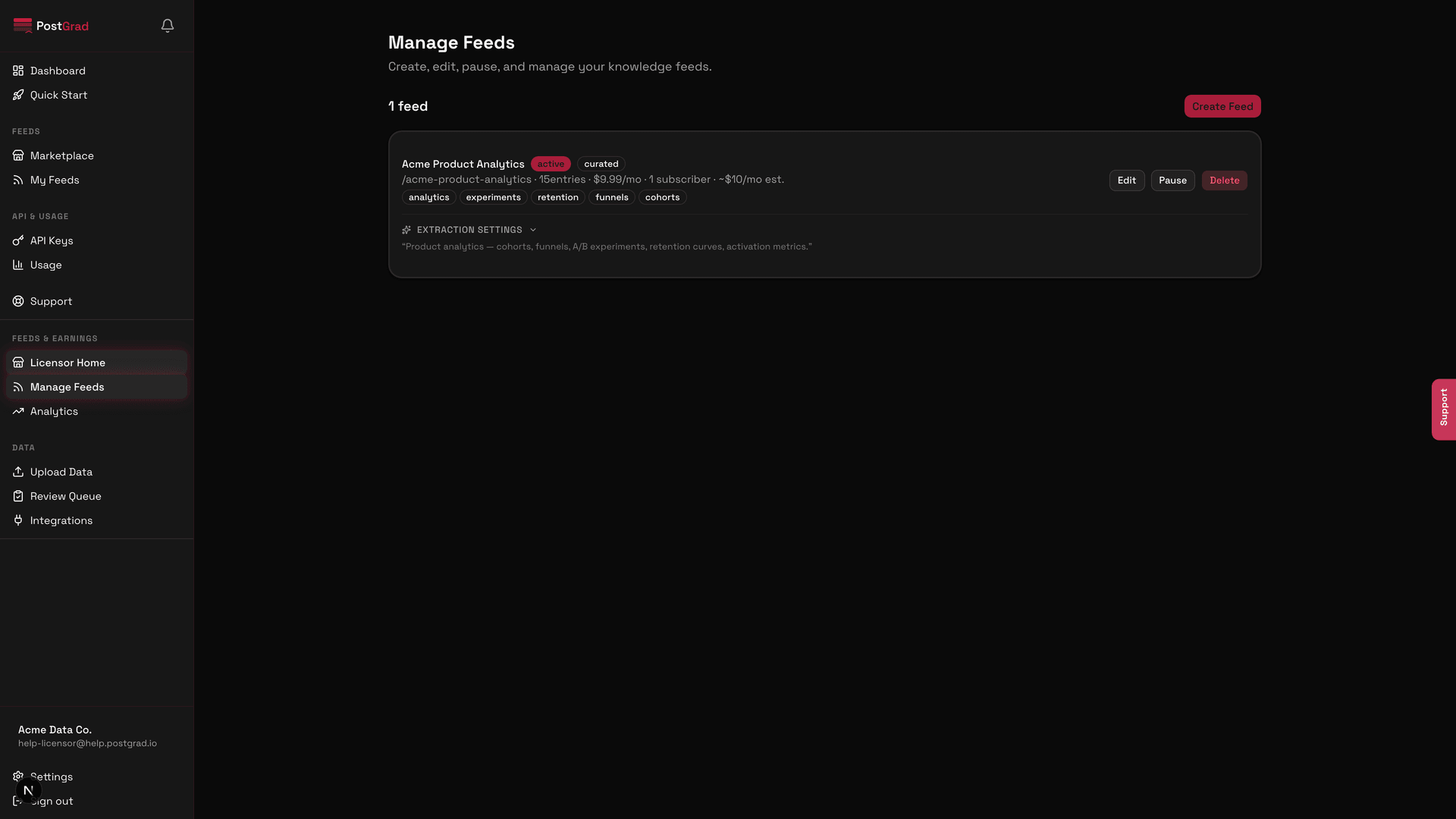
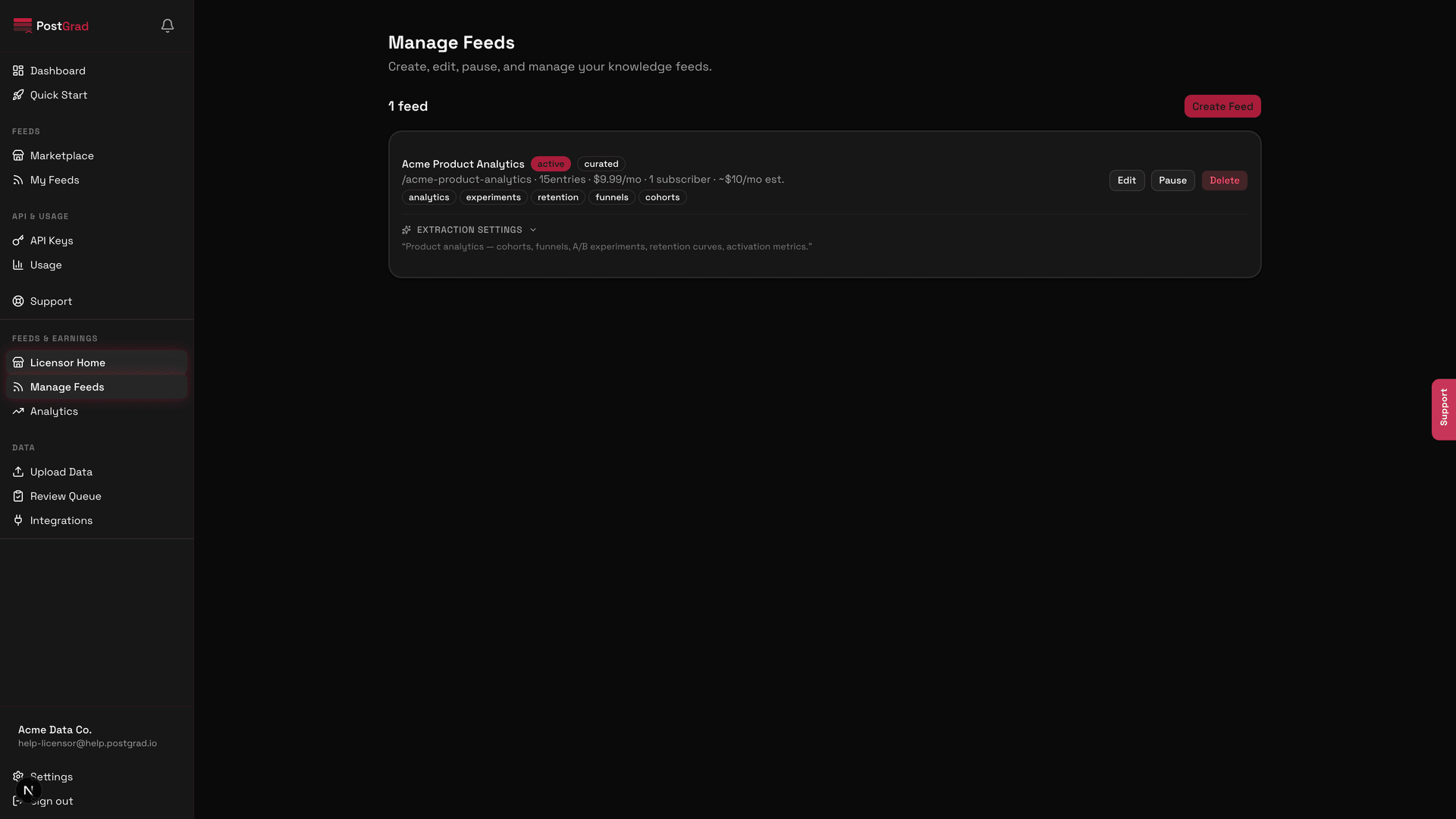
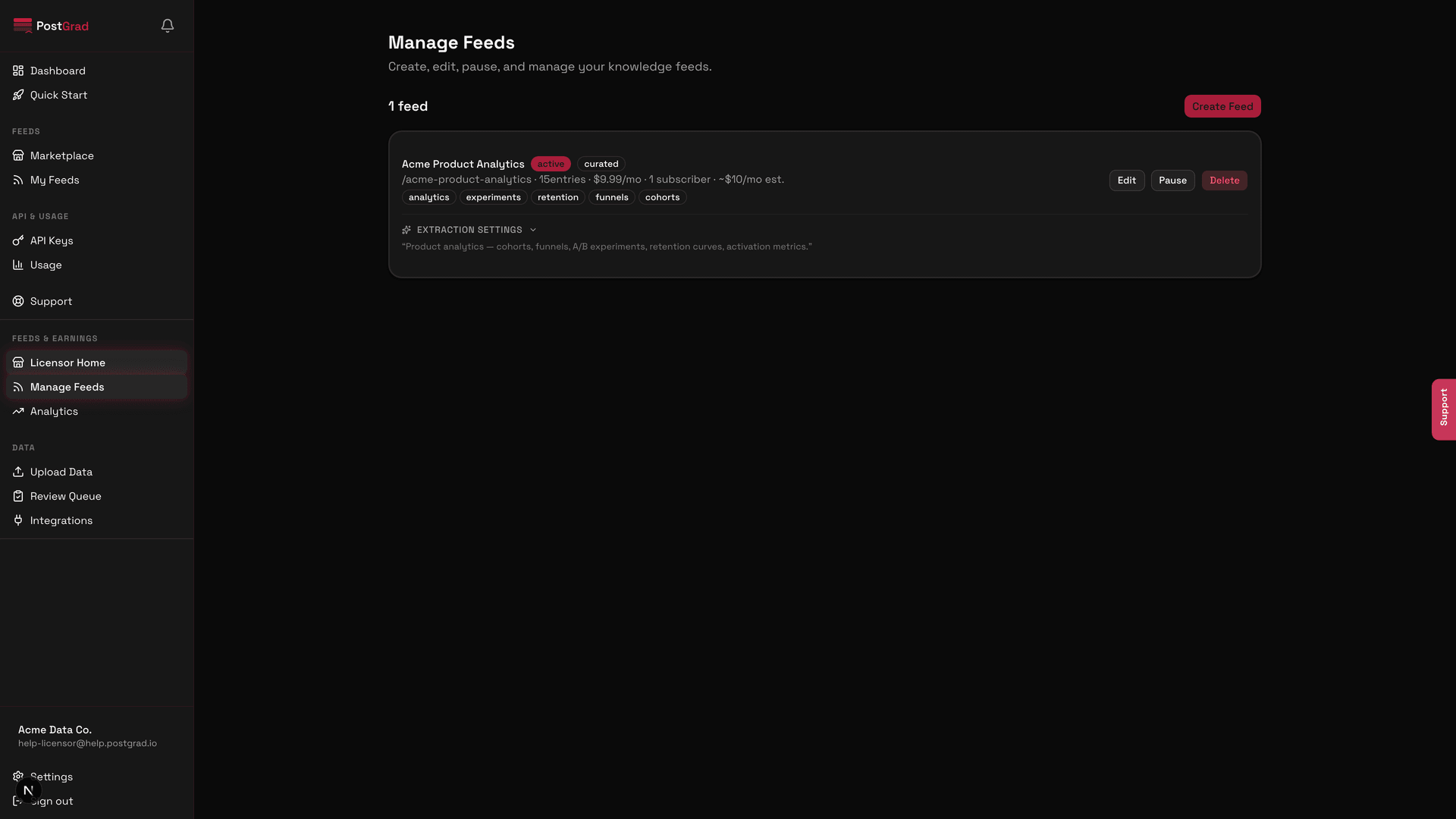
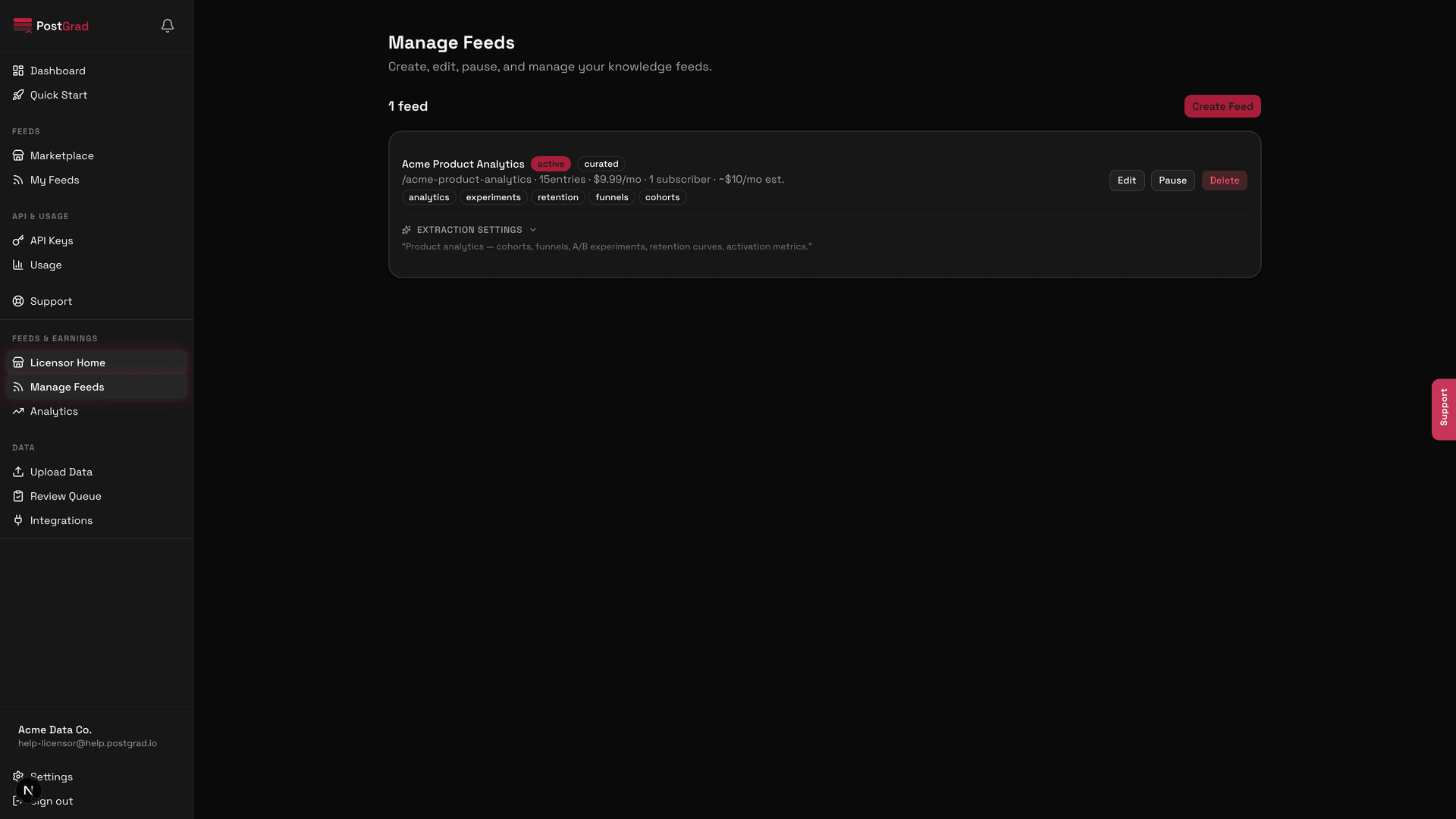
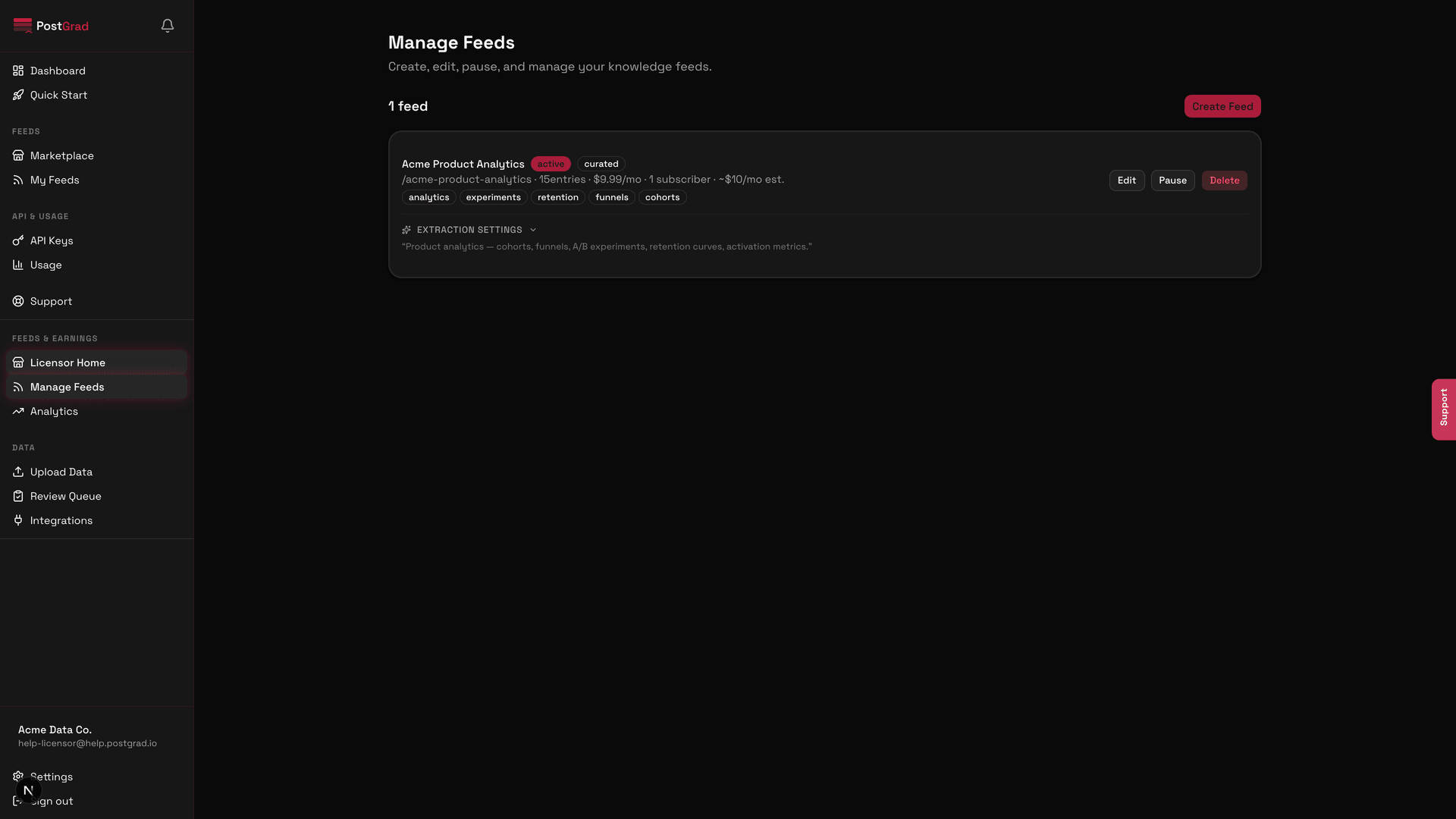
1Open My Feeds from the licensor sidebar
The licensor My Feeds page showing any existing feeds and the Create feed button in the top right.
2Name your feed and write a description
The feed creation form with fields for name, slug, short description, and long description.
3Set the monthly price
The price picker showing a minimum of one dollar, with a slider and a direct-entry field.
PostGrad's platform fee is deducted from this price — thirty percent on Starter, down to fifteen on Enterprise. Your net is displayed inline as you adjust.
4Pick categories and tags
The categories picker with search, a grid of selectable chips, and the currently-selected tags shown in a row.
5Configure extraction settings
The extraction settings panel showing confidence floor, PII scrub toggle, and source-type allowlist.